You can buy a custom domain and use that as the domain for your blog instead of “.blogspot.com”.
Buy a domain from SkyBiz Domains
Set up your domain with your blog
Set up a custom domain so that your original Blogger address automatically forwards to your new domain.
- Sign in to Blogger.
- Select the blog to update.
- In the left menu, click Settings > Basic > Publishing.
- Under your current domain, click Set up a 3rd party URL for your blog.
- Enter your URL, including the www.
- Click Save.
- An error will appear with two CNAMEs.
- Visit your domain registrar's website and find the DNS (Domain Name System) or the Name Server settings in the control panel.
- Delete existing CNAME entries.
- Enter the CNAMEs provided in the error message and click Save.
- Wait for a few hours for your settings to activate, then follow steps 1–6 above.
It may take up to 24 hours for the process to complete. If you see an error after 24 hours, try the process again. Contact your domain registrar for further help.
Note:
Host Name/Alias: www
This is the part of your website's address that you designated. For example, if www.mydomain.com is your address, enter www.
Value/Destination: <YOUR DOMAIN>.ghs.googlehosted.com
For example, if you chose www.mydomain.com as the address, enter www.mydomain.com.ghs.googlehosted.com.
Optional: You can also enter A-records, which link your naked domain (example.com) to an actual site (www.example.com).
Enter your domain name in the format example.com, and list the IP addresses shown below in the "A" section. You'll need to add four separate A-records which point to four different Google IPs.
- 216.239.32.21
- 216.239.34.21
- 216.239.36.21
- 216.239.38.21
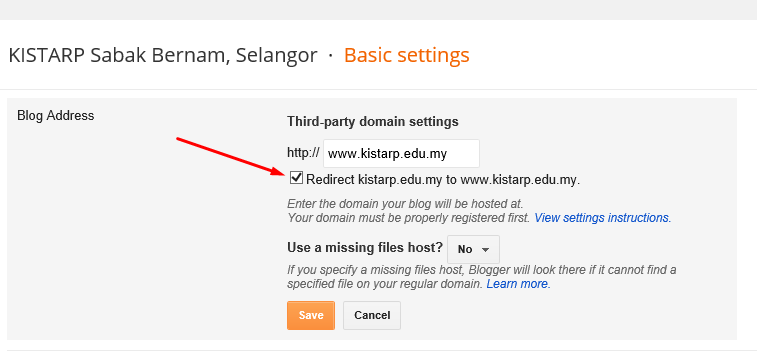
Good day to you. we have enabled the auto forwarding to WWW for your domain trough blog-spot. basically all need to do is go to setting --> basic setting --> publishing --> and select the redirect domain without www to domain with www as per showing in below screenshot:



 Loading knowledgebase suggestions...